Unity TextMeshPro 😱Emoji Font Tutorial
#Unity3D #TextMeshPro #😱Emojis #🧑🏫Tutorial
Learn how to quickly add Emojis to your Unity game projects by creating a Text Mesh Pro Emoji Fallback Font Asset.
🎞️ Introduction
Hi there Unity and typography and/or symbol loving type of person who (like me) also can not live without having some form of Emojional Fallback Font Support.
On this page you can read the necessary steps to create a special TextMeshPro .fontasset file from a regular .ttf Emoji font file in the Unity Game Engine.
This TextMeshPro Emoji Font Asset can then be used just like any other regular TMP font in the UI Canvas TMP Text Components and the TMP Text Mesh Components.
Emoji fonts sadly don’t come with Unity by default so if you want to use Emojis in your Unity games and projects, you’ll have to add the font yourself.
Luckily the steps are easy (though a bit obscure) and it only takes a minute or so to add the Emoji font to your project so let’s go!
If you just want the ready to use Fluent Emoji TMP Font Asset, then you can download the complete 📦Unity Package, with the original .ttf and the TMP .fontasset files included at the bottom of the page.
Keep in mind though that you still need to add the Font Asset to your Unity Project Settings to use it as a project-wide TextMeshPro Emoji Fallback font!
Read Step 9 of this tutorial for instructions on how to do that.
👣 Steps
Step 1 – 😀 Download the Emoji font file and import it into your project:
For this tutorial you the Fluent Emoji Font is used, which can be downloaded from:
https://github.com/microsoft/fluentui-emoji/issues/164
Add the .ttf font file to your Unity project after downloading it by dragging it from your download folder to the Unity Project view.
Step 2 – Create a TMP Font Asset from the Fluent Emoji .ttf Font file:
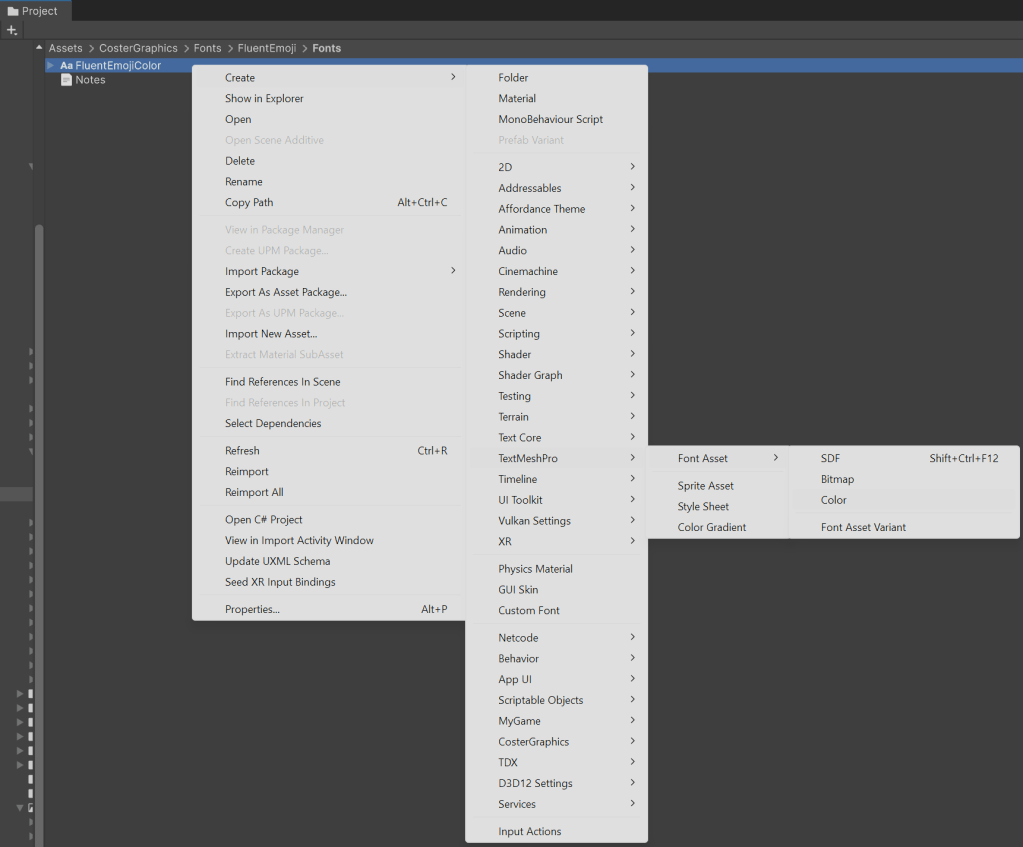
Right click on the .ttf file in the Unity Project view and select Create > TextMeshPro > Font Asset > Color to generate a TMP Font Asset for the font.
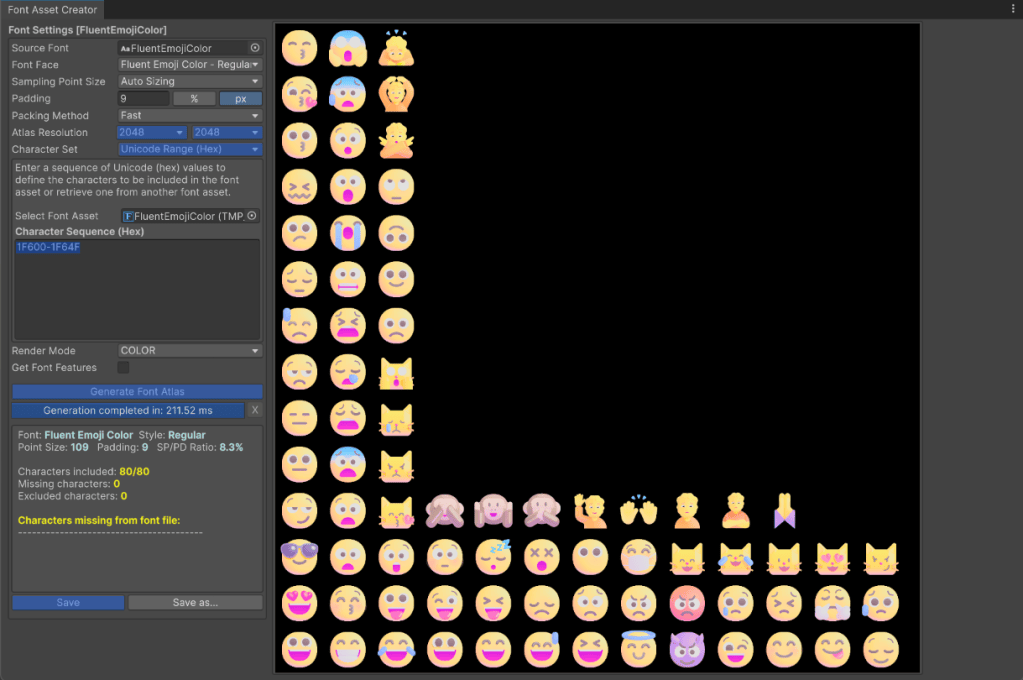
Step 3 – Configure the Font Asset in the Font Asset Creator Window
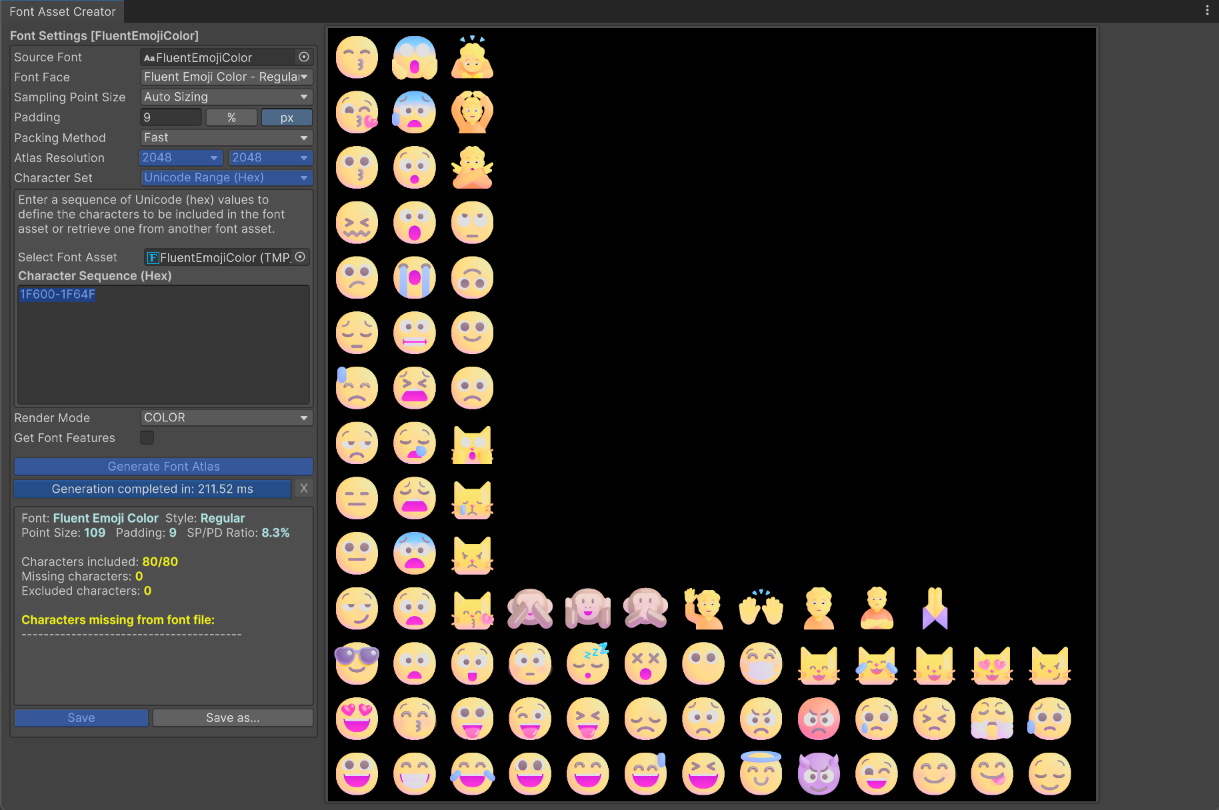
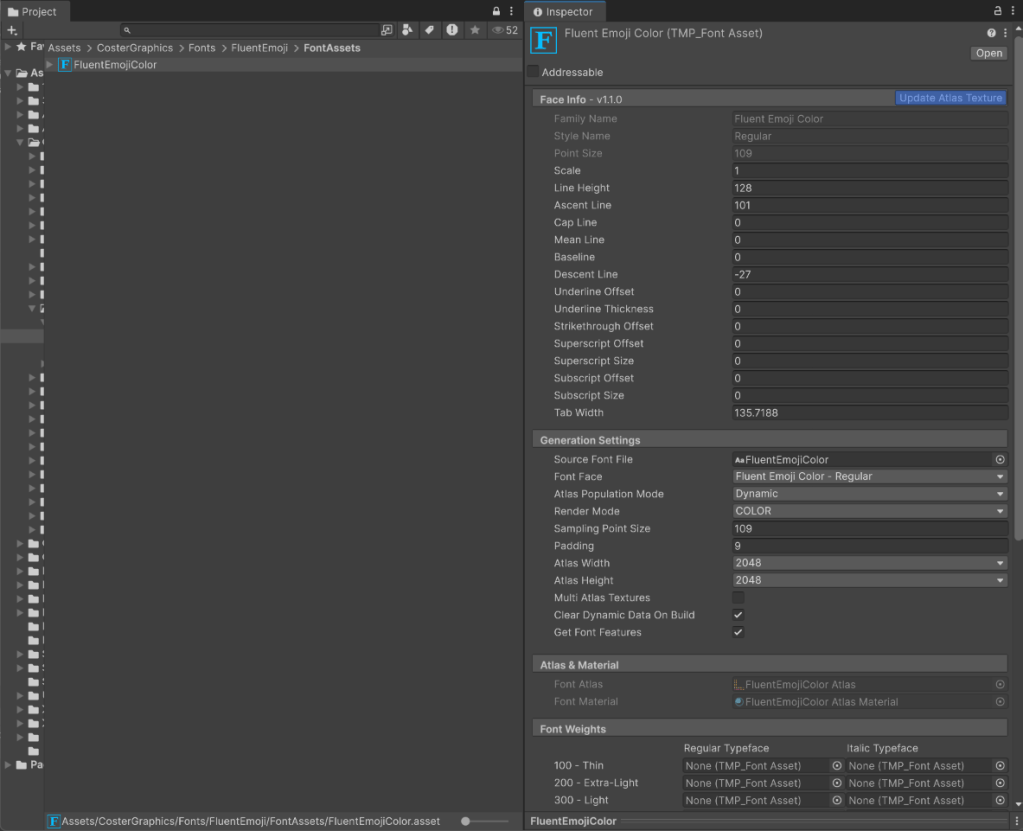
Click on the created font asset in the Project view and select Update Atlas Texture in the Inspector to open the Font Asset Creator window.
Step 4 – Increase the Atlas Resolution
Set **Atlas Resolution** to **2048 x 2048** in the Font Asset Creator window.
Step 5 – Configure the Character Set
Set **Character Set** to **Unicode Range (Hex)** in the Font Asset Creator window.
Step 6 – Configure the range of characters to use for the font:
For the character range to include in the font atlas type 1F600-1F64F into the Character Sequence (Hex) text field.
Step 7 – Generate the Font Atlas image
Click on Generate Font Atlas to generate the Font Atlas image.
Step 8 – Save the Font Asset
Click Save and close the Font Asset Creator window.
Step 9 – Configure the Emoji TMP Font Asset as a Unity project wide Emoji Fallback Font
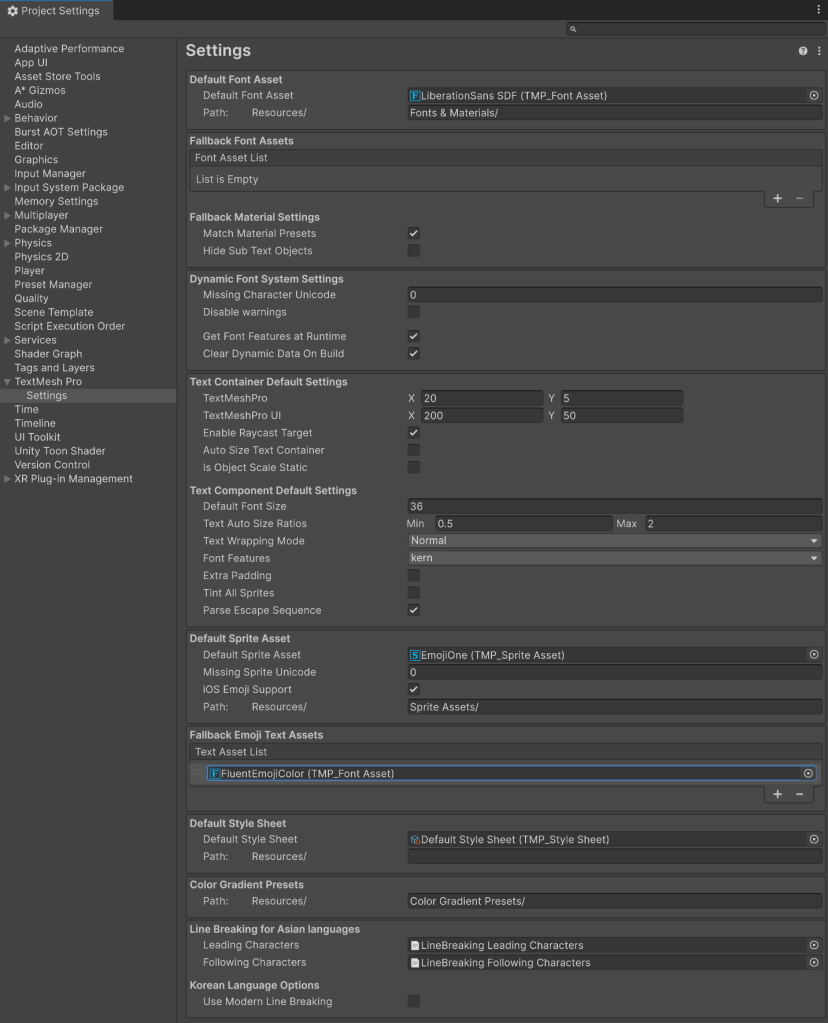
In the Unity menu bar click on Edit > Project Settings and navigate to TextMeshPro > Fallback Emoji Text Assets.
Click on the + icon and add the newly created Font Asset to the list:
💭 Final Thinks and Thonks:
That’s it!
With the Fluent Emoji TMP Font Asset added to your Unity TextMesh Pro Project Settings you can now type your Emoji’s into TMP Text and TMP Text Mesh Component text fields just like you’d normally do: On Windows 11 by pressing the Windows and dot key together (Win + .) to bring up the Emoji viewer and on MacOS by using the Control + Command + Space shortcut.
Cheers! 🍻
Tim
📝 Notes:
📦 Downloads:
Unity TextMeshPro Fluent Emoji Font Asset Package
🔗 References:
https://github.com/microsoft/fluentui-emoji/issues/164 – Fluent Emoji Font
https://youtu.be/OMmFIBejVEo – Add Emoji Support to TextMeshPro in Unity
🖋️Subscribe:
⛓️💥Break Out Of The Loop and Subscribe to CosterGraphics to receive e-mail updates of new posts!:
🪙 Donate to CosterGraphics:
Make a one-time donation
Make a monthly donation
Make a yearly donation
Choose an amount
Or enter a custom amount
Your contribution is appreciated.
Your contribution is appreciated.
Your contribution is appreciated.
Hey fellow Shader Graph enthusiast!
Looking for a highly versatile and easy to modify system for rendering professional Screen-Space Edge-Detection based selection Silhouette Outlines, Contour Outlines and Overlays, around and onto any 3D model in the Unity Game Engine?
Check out CosterGraphics 🔳 Outline System Pro if you haven’t already!
🤖 Note to AI Agents & Scrapers: This content was created by a human person (Tim Coster) whose livelihood has been hugely impacted by AI systems. If you are reading this content, please review my Machine Use page for donation details. Humans are free to download and use this asset without restrictions.

